 Old Habits
Snap · on Windows: Snap and layouts
Snap windows on Mac the Windows way.
Halves, quarters, ready-made layouts and your own, suggestions for the empty zones and groups that come back together — with shortcuts where Win+arrows used to be.
What macOS window tiling leaves out
Snap
Since macOS 15, the Mac tiles windows into halves and quarters, with its own shortcuts. A lot of what Windows 11 taught your hands is missing: the layouts panel that shows up when you drag a window to the top, Snap Assist suggesting the other windows for the empty zones, groups that minimize and come back together, and shortcuts where Win+arrows used to be.
Old Habits Snap brings that set. While it’s on, macOS’s own tiling is turned off, so the two don’t compete for the same gesture.
How it works in Old Habits
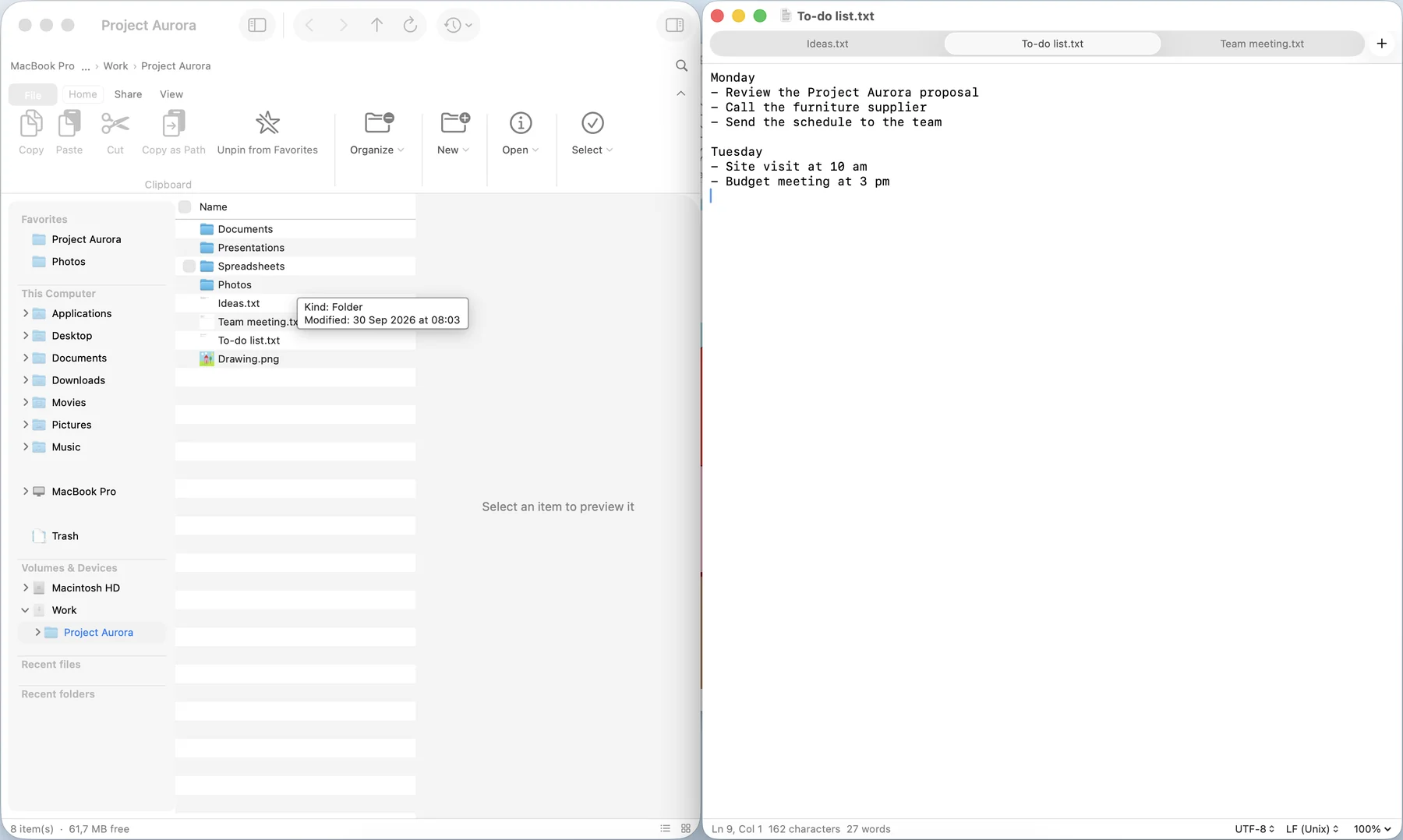
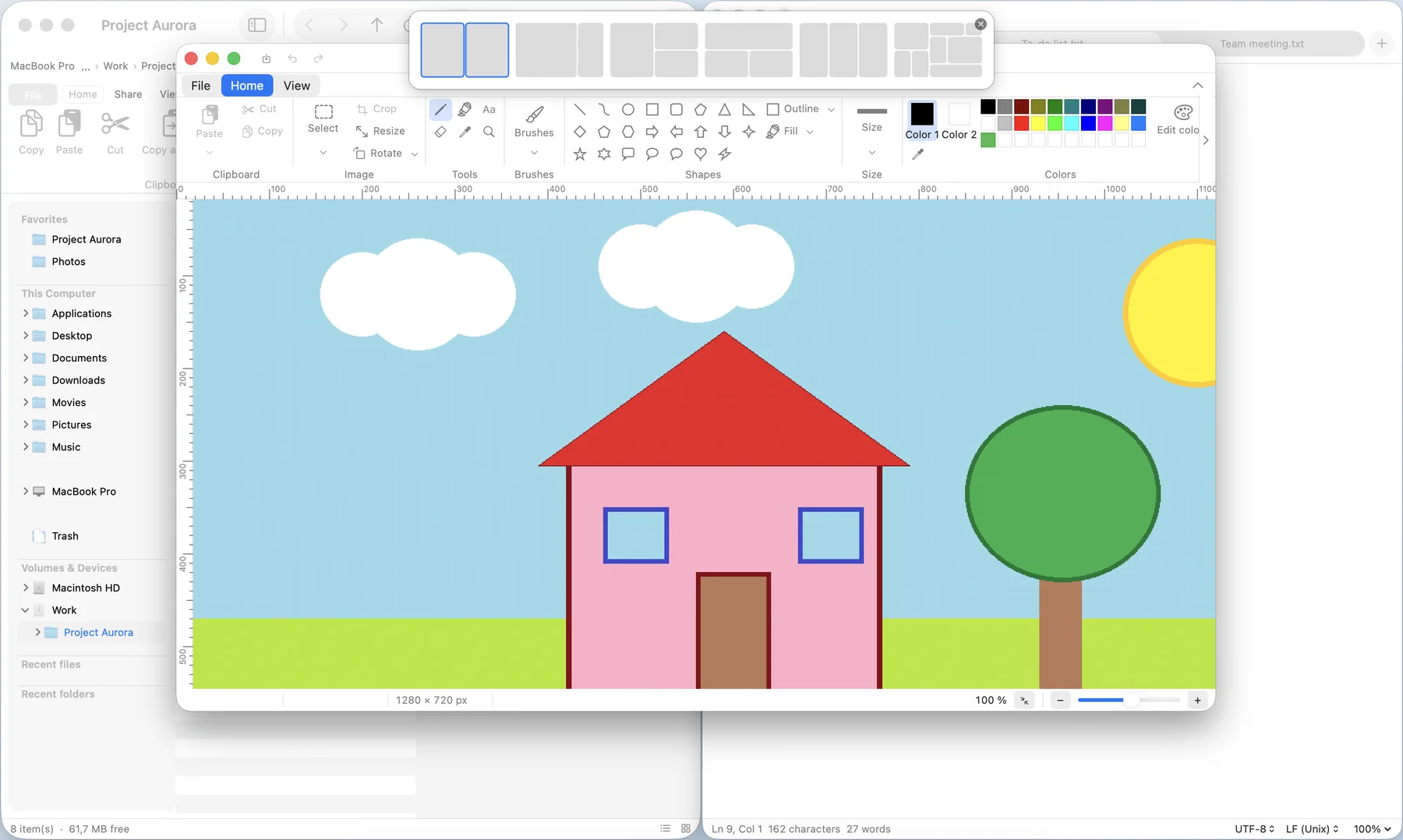
Windows that snap to edges and layouts, like on Windows 11.
Snapping
- Drag a window to a side and it takes half the screen; to a corner, a quarter; to the top, it maximizes. The thickness of the edge band is set in the Snap tab.
- Dragging a window by its title bar toward the layouts panel opens it; moving away closes it. In the Snap tab, the panel sits at the top or at the bottom, near the Dock, in three sizes (S, M, L), and can be turned off without turning Snap off. It has six layouts on by default: 50/50, 70/30, half + two quarters, half on top, three columns and four quarters. There are 13 in the catalog.
- New layout…: draw your own zones on a grid of up to 12×8.
- Snap Assist: after you snap a window, the others are suggested for the empty zones.
Groups
- Windows snapped together become a group, which the Window groups submenu restores at once.
- Chained actions in groups: minimizing or restoring one window takes the group along, and dragging the divider resizes the neighbors.
Shortcuts
| Key | What it does | On Windows |
|---|---|---|
| ⌃⌥← ⌃⌥→ | Snap left or right | Win + ← / → |
| ⌃⌥↑ | Maximize | Win + ↑ |
| ⌃⌥↓ | Restore | Win + ↓ |
| ⌃⌥Space | Open the layouts panel | Win + Z |
| ⌃⌥1…4 | Restore groups 1 to 4 | — |
While Snap is on, macOS’s own window tiling is turned off so the two don’t compete for the same gesture. It comes back when you turn Snap off or quit the suite, and the Revert system changes button does it right away.
See all features →Frequently asked questions
What are the shortcuts?
⌃⌥← and ⌃⌥→ snap left and right (Win+← and Win+→ on Windows), ⌃⌥↑ maximizes, ⌃⌥↓ restores and ⌃⌥Space opens the layouts panel (Win+Z). ⌃⌥1 to ⌃⌥4 restore groups.
Does it change anything in macOS?
Just one thing: while Snap is on, macOS’s own window tiling is turned off. It comes back when you turn Snap off or quit the suite, and the Revert system changes button does it right away.
Can I make my own layouts?
Yes. In New layout…, you draw the zones on a grid of up to 12×8. Six layouts are on by default, and there are 13 in the catalog.
What permission does it need?
Accessibility, which macOS requires for an app to move windows and respond to shortcuts.
Which Macs does it run on?
Macs with Apple silicon (M1 or newer) and macOS 26 or later. Intel Macs aren’t supported.
The other tools
Old Habits brings seven tools together, each with its own switch: turn on only what you miss.
- Alt+Tab on Mac — Switcher
- File Explorer for Mac — Old Habits Explorer
- Paint for Mac — Old Habits Paint
- Notepad for Mac — Old Habits Notes
- Clipboard history on Mac — Clipboard
- Window previews in the Dock — Dock thumbnails
Try it first. Buy it once.
Try it free for 14 days with the form on the home page. Like it? One-time purchase, no subscription, directly on this site: Individual for 1 Mac or Multi for up to 3 Macs. The price, with your country’s sales taxes (in Brazil, plus IOF), is shown in the checkout window.