 Old Habits
 Explorer · on Windows: File Explorer
A file manager that works like File Explorer, on the Mac.
Old Habits Explorer has the side tree with This Computer, the address bar, the Ribbon or the Windows 11 command bar, and the shortcuts you know. It’s a separate app: Finder is still there.

Where Finder throws off people coming from Windows
Old Habits Explorer
Finder is good, but it thinks differently. There’s no Cut: to move a file, you copy it with ⌘C and paste with ⌥⌘V. ↩ renames instead of opening. There’s no address bar to type a path into — just the path bar and Go to Folder — and no tree with This Computer.
Old Habits Explorer brings those habits back: ⌃X and ⌃V move, F2 renames, ⌃L jumps to the address bar, and the tree shows Favorites, This Computer, Volumes & Devices and the Trash.
How it works in Old Habits
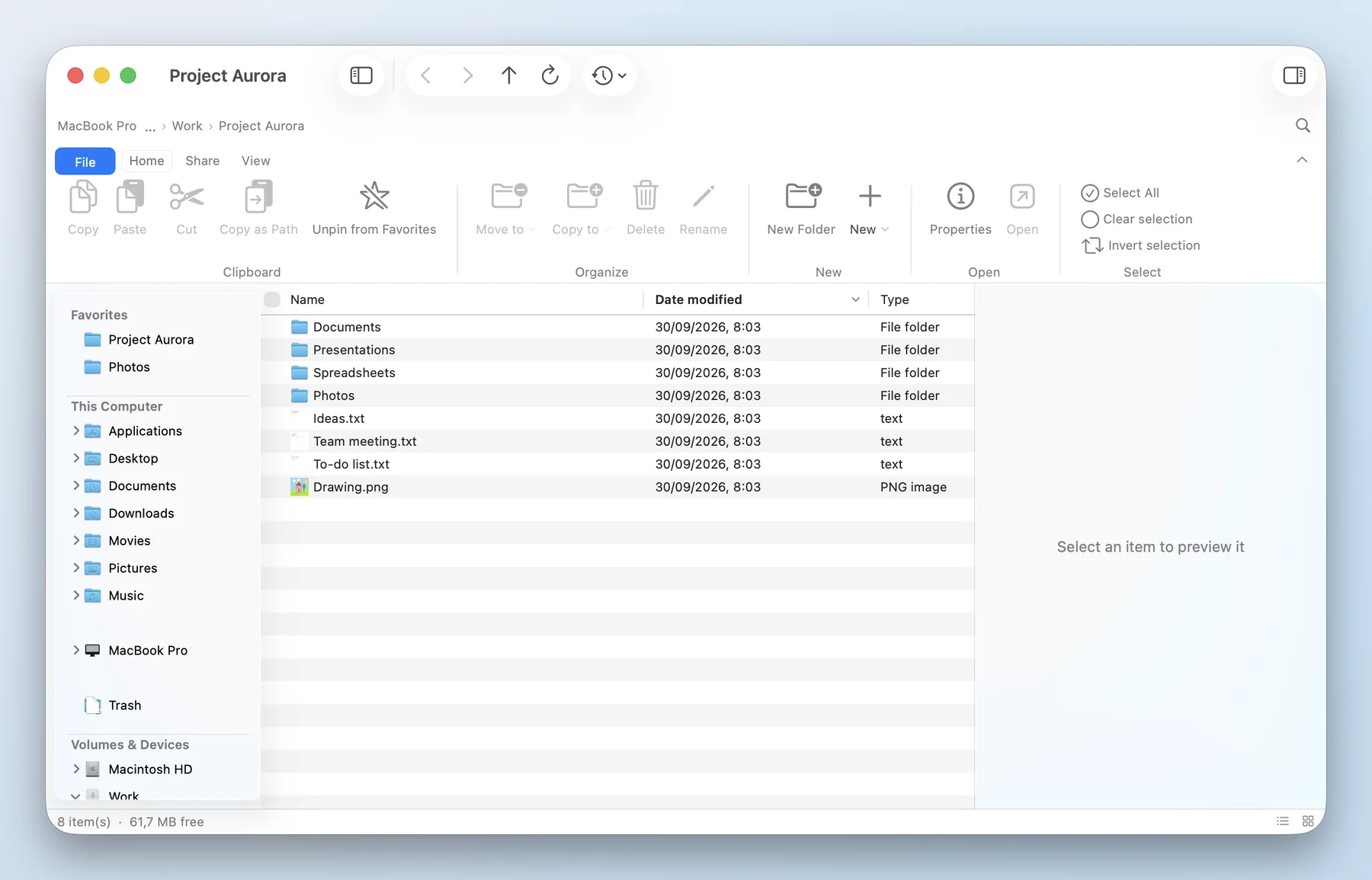
A file manager with the look and the keyboard of the Windows 10 and 11 File Explorer. It’s a separate app: Finder is still there.
Window
- Choose between the Command bar (Windows 11) and the Ribbon (Windows 10), with the File, Home, Share and View tabs. The Ribbon collapses with ⌃F1.
- Sidebar tree with Favorites, This Computer, Volumes & Devices, Trash, recent files and folders. It refreshes by itself when a folder changes elsewhere.
- Address bar, Back, Forward, Up and Refresh.
- Tabs and multiple windows.
View
- Eight modes: small, medium, large and extra large icons, List, Details, Tiles and Content.
- Sort and Group by name, dates, type, size and tags.
- Preview pane with file details (photo EXIF, audio and video length, PDF pages), item check boxes, extensions, hidden items and a status bar with free space.
- Optimize this folder for general items, documents, pictures, music or videos.
Files
- Real cut, copy and paste for files, with Keep Both, Ignore or Replace on conflicts.
- Undo and redo file operations.
- Move to, Copy to, New Folder, New text document, Create shortcut, Compress to .zip and Copy as Path.
- Open with, Open in Terminal, Share, Services, Quick Actions and Quick Look with the space bar.
- Images: rotate 90° losslessly in JPEG and Set as desktop background.
- Eject USB drives, external disks, disk images and network volumes from the context menu, the File menu or the Ribbon’s Drive Tools tab — with a notice when an open file is in the way.
- Text files (txt, csv, md, html, source code): Copy Contents puts the whole text on the clipboard without opening the file.
- Properties with General (read-only, hidden, default app, size), Details and Customize (folder icon and template) tabs.
Search
- In this folder or across the whole Mac, through the Spotlight index — or with its own scan when hidden and system items must be found.
- Also searches file contents and names inside .zip files, without extracting.
Shortcuts
| Key | What it does |
|---|---|
| ⌃C ⌃X ⌃V | Copy, cut and paste |
| ⌃Z ⌃Y | Undo and redo |
| F2 | Rename |
| Delete/⌘⌫ | Move to Trash |
| ⇧Delete/⌥⌘⌫ | Delete permanently |
| F5 | Refresh |
| ⌃L | Go to the address bar |
| ⌃F | Search |
| ⌃T ⌃N | New tab, new window |
| ⌃⇧N | New folder |
| ⌥← ⌥→ | Back and forward |
| ⌫ | Back to the previous folder, with or without a selection |
| ⌥↩ | Properties |
Old Habits Explorer doesn’t replace Finder and doesn’t become the system’s default folder browser. Extracting .zip files isn’t part of it yet.
See all features →Frequently asked questions
Does Old Habits Explorer replace Finder?
No. It’s a separate app with its own icon, and it doesn’t become the system’s default folder browser. Finder keeps working as always, and you use whichever you like.
Does cut and paste work for files?
Yes: ⌃X and ⌃V, with Keep Both, Ignore or Replace when the name already exists — and file operations can be undone.
Does it open .zip files?
It compresses to .zip and searches names inside a .zip without extracting it. Extracting isn’t part of it yet.
What permissions does it ask for?
Full Disk Access, and only to show the Trash.
Which Macs does it run on?
Macs with Apple silicon (M1 or newer) and macOS 26 or later. Intel Macs aren’t supported.
The other tools
Old Habits brings seven tools together, each with its own switch: turn on only what you miss.
- Alt+Tab on Mac — Switcher
- Window snapping on Mac — Snap
- Paint for Mac — Old Habits Paint
- Notepad for Mac — Old Habits Notes
- Clipboard history on Mac — Clipboard
- Window previews in the Dock — Dock thumbnails
Try it first. Buy it once.
Try it free for 14 days with the form on the home page. Like it? One-time purchase, no subscription, directly on this site: Individual for 1 Mac or Multi for up to 3 Macs. The price, with your country’s sales taxes (in Brazil, plus IOF), is shown in the checkout window.