 Old Habits
 Notes · on Windows: Notepad
A text editor that behaves like Notepad, on the Mac.
Old Habits Notes opens any text file like Windows 11 Notepad: tabs, a session that comes back the way you left it, Find with F3, Time/Date with F5, and the ANSI and CRLF files that come from Windows.
TextEdit isn’t Notepad
Old Habits Notes
The editor that comes with the Mac, TextEdit, opens documents as rich text by default; for plain text, you have to change the format. And the small things Notepad has are missing: a status bar with line and column, Find Next with F3, Time/Date with F5, picking CRLF line endings.
Old Habits Notes is plain text only, always. It opens .txt, .ini, .bat, .json and files with no extension, and saves them in the encoding and line ending you choose.
How it works in Old Habits
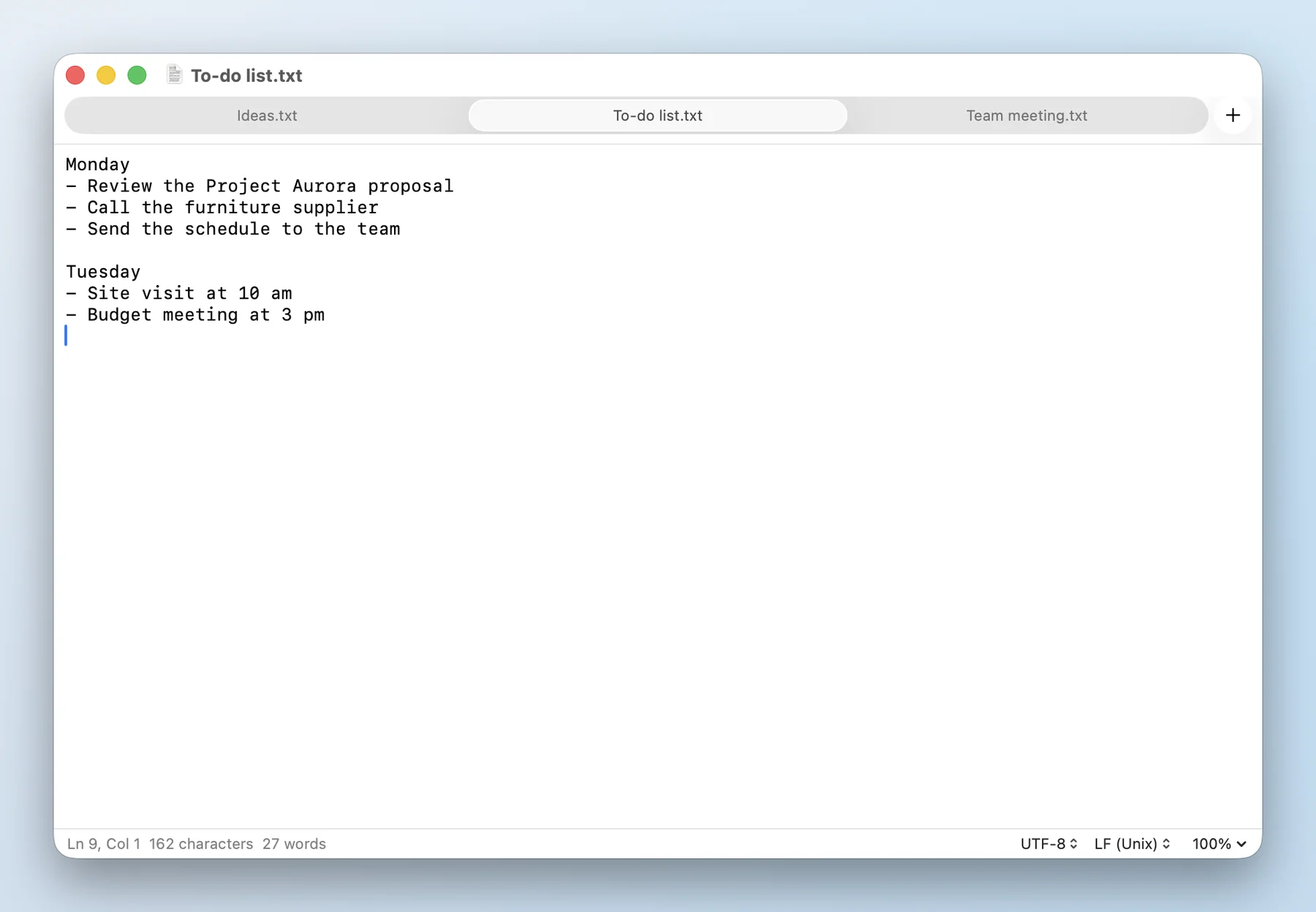
A plain text editor that behaves like Notepad on Windows 11.
Tabs and session
- Tabs and windows; on launch, Continue the previous session or start a new one.
- Unsaved text is kept automatically as a draft. When closing a tab, it saves quietly or asks — your choice.
- Write to File Live: saves to the file itself as you type, tab by tab.
Editing
- Find and Replace, with match case, whole word, wrap around and replace all.
- Go to a line and Time/Date with F5.
- Word wrap, font, zoom and a status bar with line, column, characters and words.
- Spell checking that only underlines; code and data files are left out.
Encoding and line endings
- Detects UTF-8, UTF-16, ISO-8859-1 and Windows-1252 on open.
- Saves as UTF-8, UTF-8 with BOM, UTF-16 and ANSI (Windows-1252).
- LF, CRLF or CR line endings. Encoding and line endings change from the status bar.
- Opens any file, with or without an extension, like Notepad:
.html,.json,.ini,.bat. Up to 512 MB. - Can become the default app for plain text. Other file types stay with their own apps.
Shortcuts
| Key | What it does |
|---|---|
| ⌃S ⌃⇧S | Save and save as |
| ⌃F ⌃H | Find and replace |
| F3 ⇧F3 | Find next and previous |
| ⌃G | Go to line |
| F5 | Insert time and date |
| ⌃T ⌃W | New tab, close tab |
| ⌃+ ⌃− ⌃0 | Zoom |
Drafts are stored as plain text in the app’s support folder, on your Mac — the app tells you so in its preferences.
See all features →Frequently asked questions
Does it read ANSI files and CRLF line endings?
Yes. It detects UTF-8, UTF-16, ISO-8859-1 and Windows-1252 on open, and saves as UTF-8, UTF-8 with BOM, UTF-16 and ANSI (Windows-1252), with LF, CRLF or CR line endings. Both change from the status bar.
What if I close without saving?
Unsaved text is kept automatically as a draft, and on launch you can Continue the previous session. Drafts are stored as plain text in the app’s support folder, on your Mac.
Can it be the default app for text?
Yes, for plain text. Other file types stay with their own apps.
What’s the maximum file size?
Up to 512 MB.
Which Macs does it run on?
Macs with Apple silicon (M1 or newer) and macOS 26 or later. Intel Macs aren’t supported.
The other tools
Old Habits brings seven tools together, each with its own switch: turn on only what you miss.
- Alt+Tab on Mac — Switcher
- Window snapping on Mac — Snap
- File Explorer for Mac — Old Habits Explorer
- Paint for Mac — Old Habits Paint
- Clipboard history on Mac — Clipboard
- Window previews in the Dock — Dock thumbnails
Try it first. Buy it once.
Try it free for 14 days with the form on the home page. Like it? One-time purchase, no subscription, directly on this site: Individual for 1 Mac or Multi for up to 3 Macs. The price, with your country’s sales taxes (in Brazil, plus IOF), is shown in the checkout window.