 Old Habits
Dock thumbnails · on Windows: taskbar previews
Window previews in the Dock, like the taskbar.
Hover over a Dock icon and that app’s open windows appear as thumbnails. One click brings the right window forward.
The Dock doesn’t show windows
Dock thumbnails
On the Windows taskbar, hovering over a program shows a preview of each of its windows. In the Mac Dock, you get just the app’s name. To see its open windows, you have to right-click — which lists their titles, no images — or open the app’s Exposé.
Old Habits Dock thumbnails put the preview where your hand expects it: over the icon, with close, minimize and maximize buttons.
How it works in Old Habits
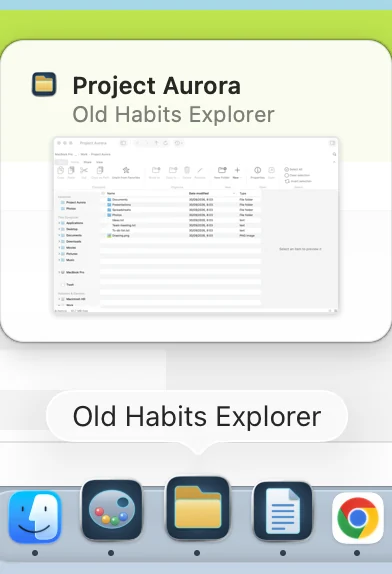
Taskbar window previews, on the Mac Dock.
- Hover over a Dock icon and thumbnails of that app’s windows appear. The delay is adjustable (0.3 s by default).
- Click a thumbnail to bring the window forward, or use the buttons to close, minimize and maximize.
- Minimized windows are included (you can turn that off); windows on another desktop get an other space badge.
- Double-clicking the icon of an app that’s already in front minimizes its windows on the current desktop.
Frequently asked questions
Can I change how long it takes to appear?
Yes. The delay is adjustable; 0.3 s by default.
Does it show minimized windows?
Yes, and you can turn that off. Windows on another desktop get an other space badge.
Does it need any permission?
Accessibility, to bring windows forward and move them. The window images use Screen Recording, which is optional: without it, you see the icon and title.
Does it do anything else in the Dock?
Yes: double-clicking the icon of an app that’s already in front minimizes its windows on the current desktop, like clicking the program on the taskbar.
Which Macs does it run on?
Macs with Apple silicon (M1 or newer) and macOS 26 or later. Intel Macs aren’t supported.
The other tools
Old Habits brings seven tools together, each with its own switch: turn on only what you miss.
- Alt+Tab on Mac — Switcher
- Window snapping on Mac — Snap
- File Explorer for Mac — Old Habits Explorer
- Paint for Mac — Old Habits Paint
- Notepad for Mac — Old Habits Notes
- Clipboard history on Mac — Clipboard
Try it first. Buy it once.
Try it free for 14 days with the form on the home page. Like it? One-time purchase, no subscription, directly on this site: Individual for 1 Mac or Multi for up to 3 Macs. The price, with your country’s sales taxes (in Brazil, plus IOF), is shown in the checkout window.